
Forms Character Control Plugin
Installation Steps
Step 1: Code injection footer
Place the following code Javascript in the Code Injection section.
Pages > Custom Code > Code Injection > Footer

How to Add a Forms Character Control
Enter the character limit.
Copy the code.
On the website page where the form appears paste the code into the form description field where the character limit is required.
Repeat 1 to 3 above for each field that requires a character limit.
Customise the look of the Forms Character Control (font size, text colour, etc.).
Copy and paste the CSS code into the Custom CSS section.
Pages > Custom Code > Custom CSS
Finally, don’t forget to ‘save’.
Step 2: Add the Character Limit Code to the Form
Enter the desired character limit.
Copy the code below.
Open the form and, in the Description field, paste the code into the specific form field where the character limit is required.
(Note: This code works for the Name, Text, and Text Area form fields.)Repeat Steps 1–3 for each form field where a character limit is needed.
Number of Text Characters
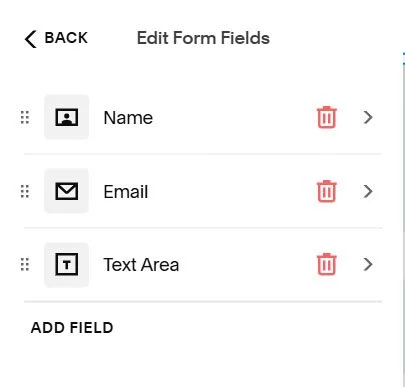
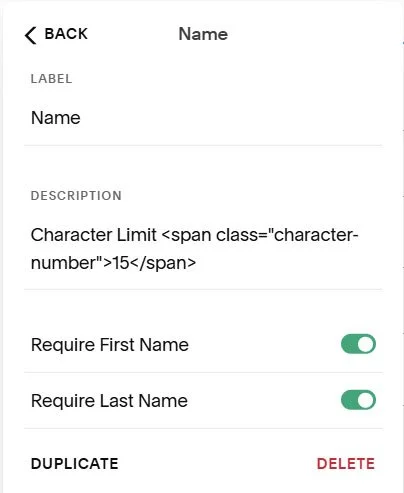
Step 3: CSS Code Generation for the “Forms Character Control” Plugin
Customise how the character limit is displayed.
Copy the code below.
Go to Pages → Custom Code → Custom CSS and paste the code there.
Text Font Size
Text Colour
Text Warning Colour
Text Critical Colour
Text Margin Top
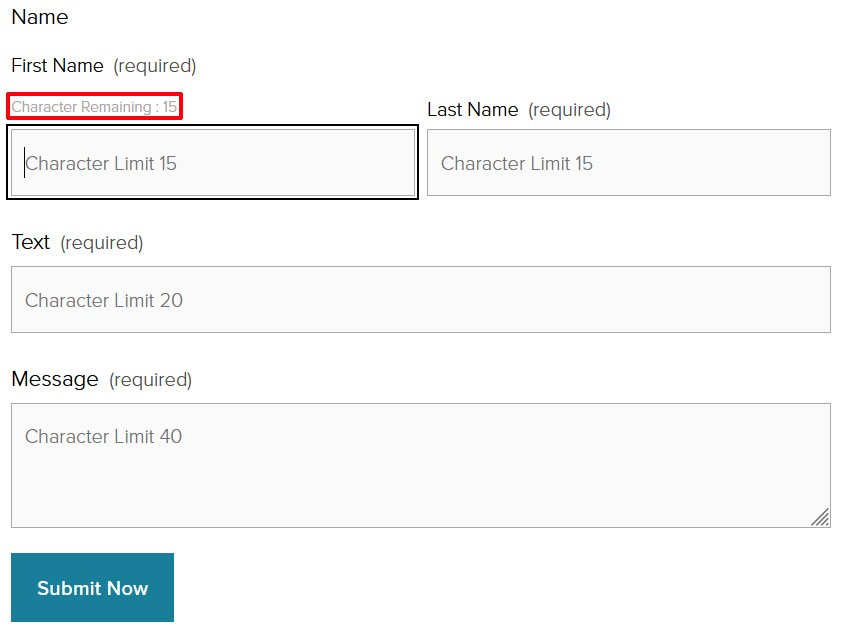
:root {
/* Character Remaining CSS Variables - Customize these */
--char-remaining-font-size: 80%;
--char-remaining-normal-color: #7b7773;
--char-remaining-warning-color: #ff7e00;
--char-remaining-critical-color: #e74c3c;
--char-remaining-margin-top: 4px;
}
/* Override styles for character remaining text */
.character-remaining-text,
.description.character-remaining-text,
.field .description.character-remaining-text,
.form-item .description.character-remaining-text {
font-size: var(--char-remaining-font-size) !important;
margin-top: var(--char-remaining-margin-top) !important;
margin-bottom: var(--char-remaining-margin-bottom) !important;
line-height: 1.2 !important;
}
/* Color styles with !important to override inline styles */
.character-remaining-text.normal,
.character-remaining-text[class*="normal"] {
color: var(--char-remaining-normal-color) !important;
}
.character-remaining-text.warning,
.character-remaining-text[class*="warning"] {
color: var(--char-remaining-warning-color) !important;
}
.character-remaining-text.critical,
.character-remaining-text[class*="critical"] {
color: var(--char-remaining-critical-color) !important;
}
/* Specific overrides for different field types */
.field.first-name .character-remaining-text,
.field.last-name .character-remaining-text {
margin-left: 0 !important;
margin-right: 0 !important;
}
.form-item.field.text .character-remaining-text,
.form-item.field.textarea .character-remaining-text {
padding: 10 !important;
}