
Random Letter Effect Plugin
Installation Steps
Step 1: Code injection footer
Place the following code in the Code Injection section.
Pages > Custom Code > Code Injection > Footer
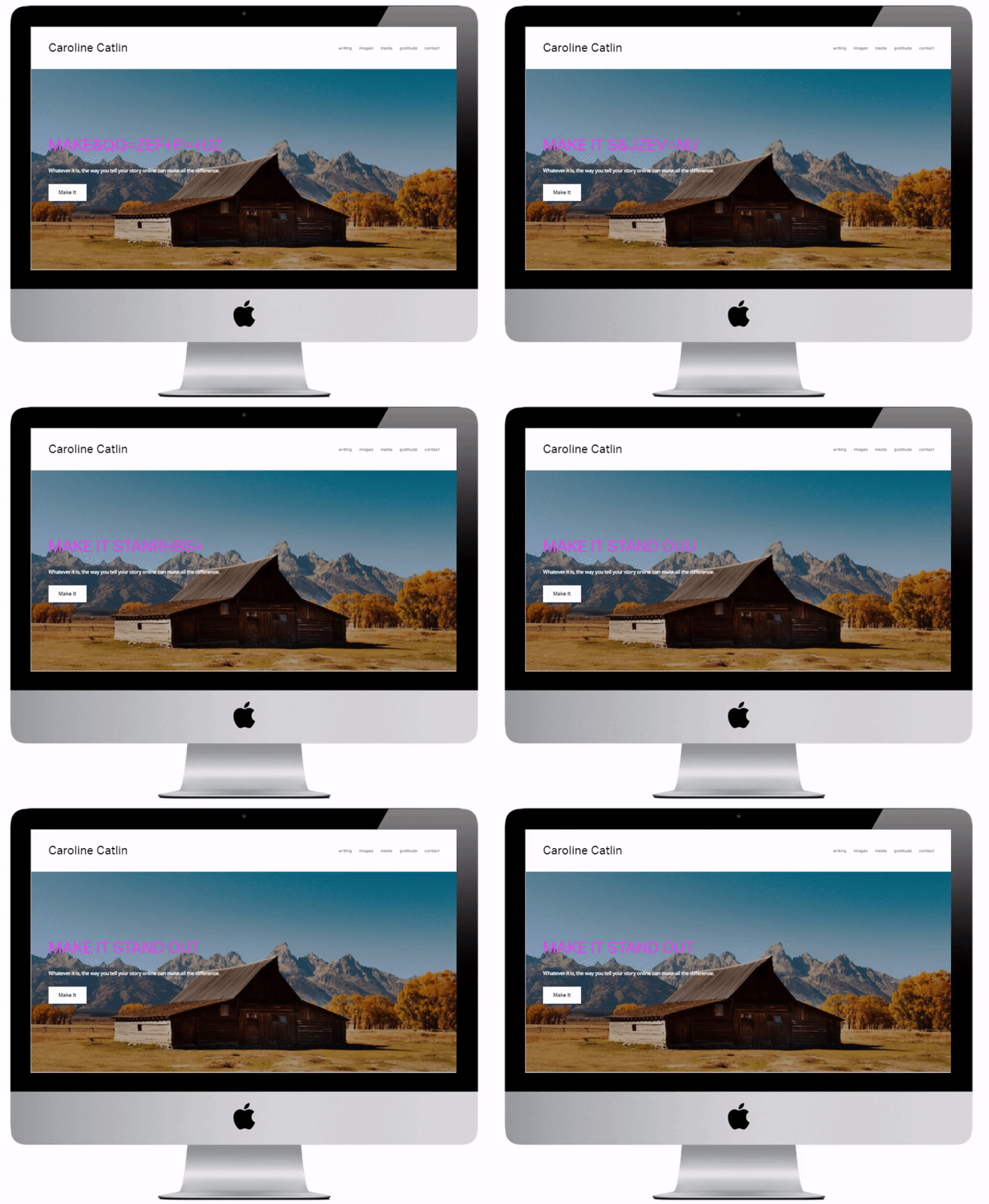
How to Add the Random Letter Effect to a Page
Open the page where you want the random letter effect to appear.
Create a code block on the page and paste the code provided.
Add your desired text, speed, and increment values.
Copy and paste the JavaScript (JS) code into the Advanced section of the page, then click Save.
Customise the random letter effect (font, colour, size, etc.).
Copy and paste the CSS code above the JS code in the Advanced section of the page, then click Save.
Repeat 2 to 6 above on any other page where you want the random letter effect to appear.
Step 2: Determine where Random Letter Effect is to Appear
Open the page where you want the random letter effect to appear.
Create a code block on the page and copy the code below.
Step 3: Add the Text, Speed and Increment
Text – enter the text you want to display.
Speed – enter the speed of the animation, ms per frame.
Increment – frames per step. Must be > 2.
Random Letter Text
Speed
Increment
Step 4: Copy the Random Letter JS Code
Copy the generated JS code for your random letter effect.
Place the following code in the advanced section of the page the Random Letter is to appear.
Click Pages in the left-hand menu
Locate the page you want to edit (Main Navigation or Not Linked)
Hover over the page name
Click the ⚙️ gear icon (Page Settings)
In the Page Settings window, click Advanced
<!--------------------------------------------------------->
<!-- Random Letter Effect © IGH Creations -->
<!--------------------------------------------------------->
<script type="text/javascript">
// Variable Settings
let pcRandomLetter = {
pcTheLetters: "abcdefghijklmnopqrstuvwxyz#%&^+=-",
pcCtnt: "Webb Colton", // Your text goes here
pcSpeed: 50, // ms per frame
pcIncrement: 8 // frames per step. Must be > 2
};
</script>
<!-- End Random Letter Effect © IGH Creations -->
Step 5: Customise the Random Letter
Adjust the text in your random letter effect using the following options:
Font colour – Choose the colour of your random letter text. Example:
#fec110for yellow.Font size – Set the size of the letters. Example:
4.5vwwill make the text large and prominent.Font weight – Control the thickness or boldness of the letters. Options:
normal,bold,bolder,lighter.Text Transform – Change the capitalization of your letters. Options:
uppercase,lowercase, orcapitalize.Text alignment – Choose how the text is aligned within the container:
left,center, orright.Line height – Adjust the spacing between lines of text to improve readability and balance. Example:
1.5for standard spacing.
These settings allow you to fine-tune the appearance of your random letter effect, ensuring it looks neat, well-spaced, and visually appealing on your page.
Font Color
Font Size
Font Weight
Text Transform
Text Alignment
Line Height
Step 6: Copy the Random Letter CSS Code
Copy the generated CSS code for your random letter effect.
Place the following code in the advanced section of the page the Random Letter is to appear.
Click Pages in the left-hand menu
Locate the page you want to edit (Main Navigation or Not Linked)
Hover over the page name
Click the ⚙️ gear icon (Page Settings)
In the Page Settings window, click Advanced
<!--------------------------------------------------------->
<!-- Random Letter Effect © IGH Creations -->
<!--------------------------------------------------------->
<style type="text/css">
#output{
color: #000000; /* Font colour */
font-size: 4.5vw; /* Font size */
font-weight: normal; /* normal | bold | bolder | lighter */
text-transform: capitalize; /* capitalize | uppercase | lowercase */
text-align: center; /* right | left | center */
line-height: 2em; /* Line height */
}
@media screen and (max-width: 767px) and (orientation: portrait) {
#output {
font-size: calc(2 * 4.5vw); /* 2× the desktop 4.5vw */
}
}
</style>
<!-- Random Letter Effect © IGH Creations -->