How to Hide the Shopping Cart Icon When It's Empty in Squarespace 7.1
Introduction
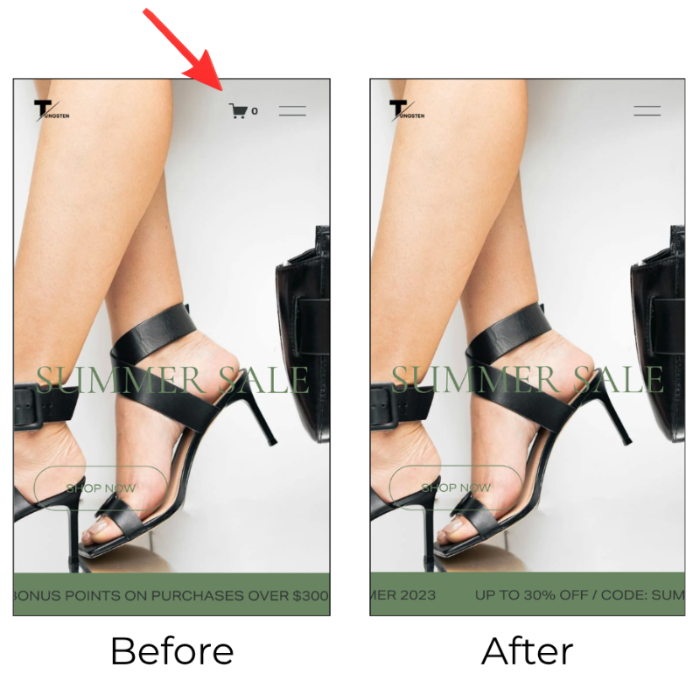
Nobody wants a shopping cart showing "0" sitting in their navigation. It looks a little awkward and can confuse visitors. The good news? You can hide it with just a few lines of CSS, with no coding experience needed!
This tutorial works for Squarespace 7.1 only.
What You'll Need
Access to your Squarespace dashboard
2 minutes of your time
Step 1: Open the Custom CSS Panel
From your Squarespace website dashboard:
In the left sidebar menu click Website > Pages
Scroll down and click Custom Code
Select Custom CSS
Tip: Use this keyboard shortcut to get to the CSS panel:
Tap the forward slash key (/) and type “Custom CSS” to go directly to the CSS panel
Step 2: Copy and Paste the Code Snippet
Copy the CSS snippet below and paste in the space below Custom Files in the CSS panel.
/* Hide Cart When Empty */
.cart-quantity-zero {
display: none !important;
}
Step 3: Save and Refresh your Site
Click Save in the top right corner and refresh your site. That's it!
What Happens Now?
Empty cart = icon is completely hidden from your navigation
Item added to cart = icon reappears automatically
The shopping cart will only become visible once your visitors add an item to it. Clean, simple, and distraction-free.
Frequently Asked Questions
Q. Will this break anything on my site?
Nope! It's a simple CSS tweak that only affects how the cart icon displays. It won't affect checkout, products, or any other functionality.
Q. Does this work on Squarespace 7.0?
This tutorial is written for Squarespace 7.1. The steps and code may be different for 7.0.
Q. What if the cart icon doesn't disappear after saving?
Try doing a hard refresh in your browser (Ctrl + Shift + R on Windows, Cmd + Shift + R on Mac). Sometimes your browser holds onto a cached version of the page.
Q. Will the cart come back when someone adds a product?
Yes! Squarespace handles that automatically. The icon reappears as soon as a product is added to the cart.
Wrapping Up
That's all there is to it! With just one small snippet of CSS, your cart icon is not visible until your visitors are ready to buy.
Found this helpful or want to know more? Contact us here and share this with a fellow Squarespace user who's just getting started!