What Is the Hamburger Menu?
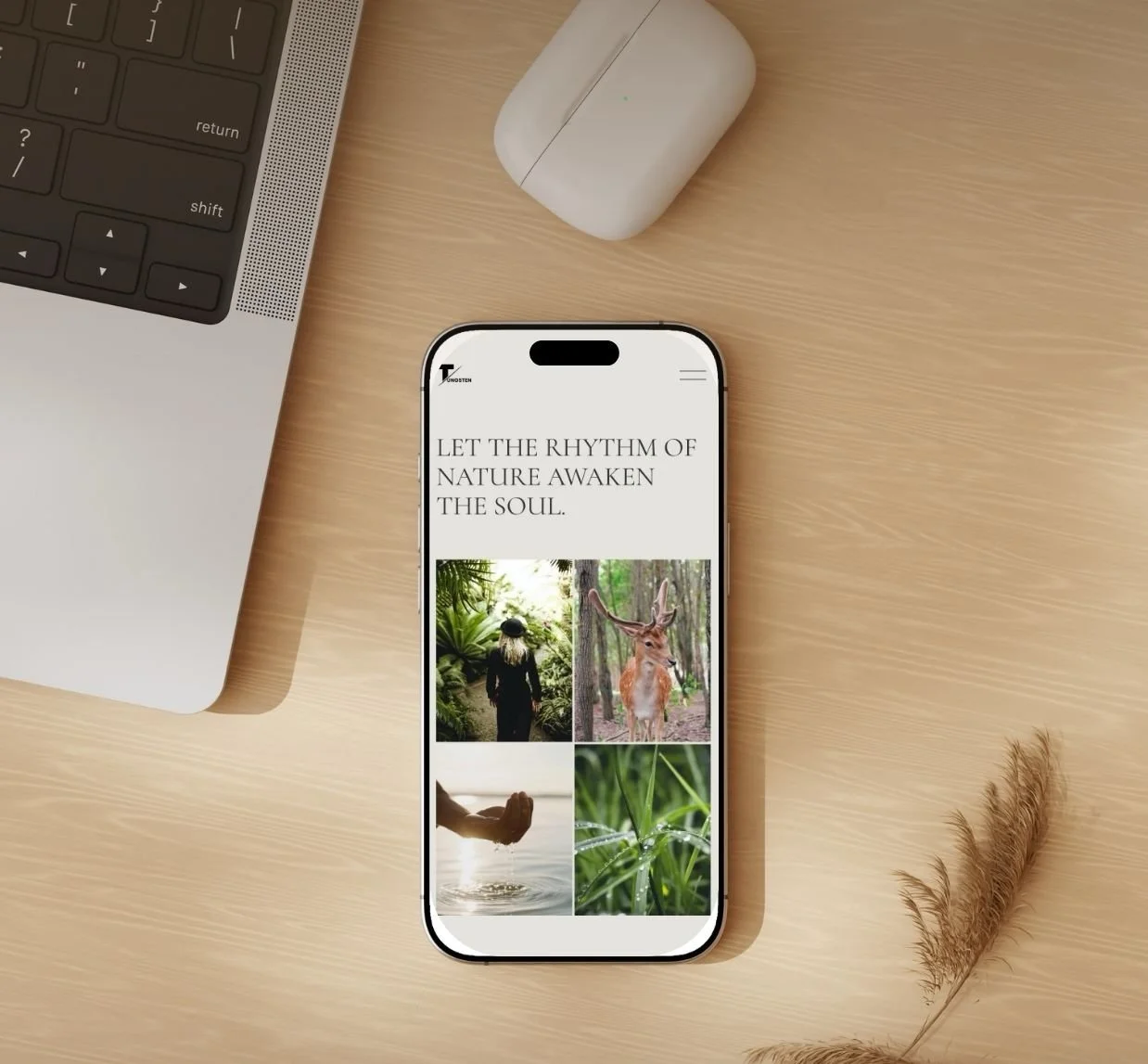
That little two line icon that appears at the top of your site when viewed on a mobile device is the “hamburger menu”. Squarespace uses it by default when showing navigation on smaller screens. It saves space. However, sometimes you might want to hide it.
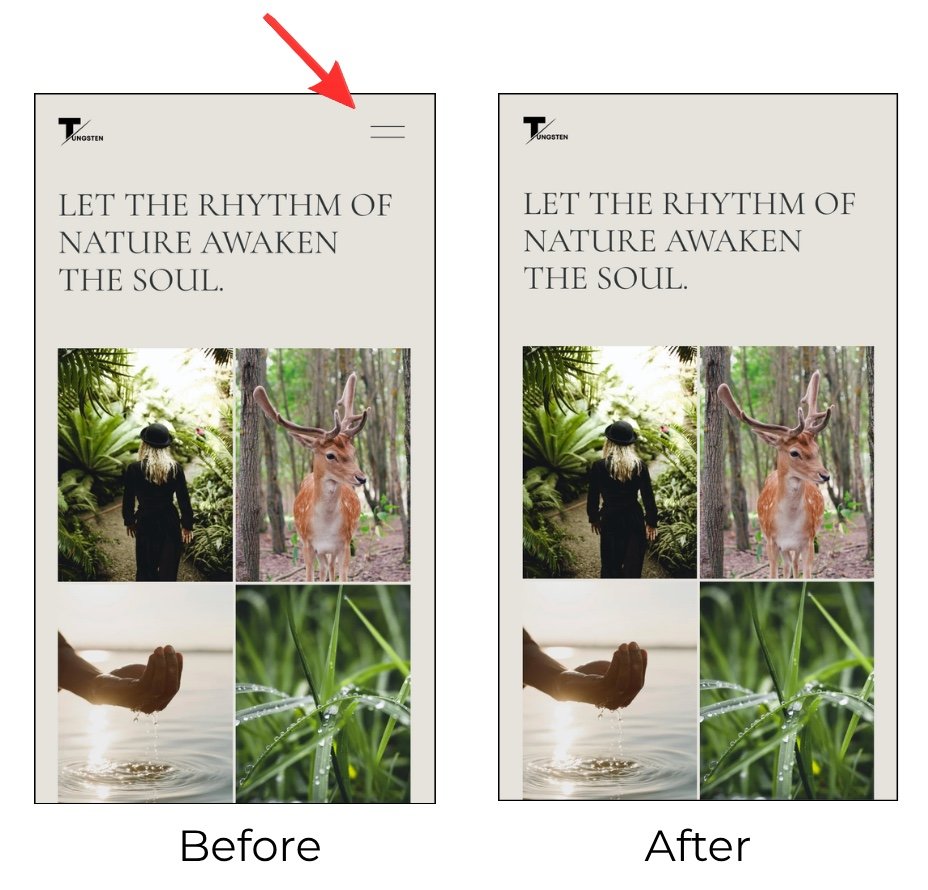
Why You Might Want to Hide It
There are a few reasons you might want to hide this default hamburger icon:
You're using a custom mobile menu built with buttons or anchor links instead
Your site has very few pages and a floating navigation or footer links work better
You want a cleaner, distraction-free mobile experience — especially for landing pages or sales pages as they convert better without a menu
It clashes with your branding and a custom navigation solution looks more polished
You're building a one-page site where scrolling is the main way to navigate
Design preference – a client or designer just don’t want it there
Before You Hide It
Just a heads-up: hiding the hamburger menu leaves mobile visitors without a way to navigate your site. So, before you hide it, make sure you've added alternative navigation, like buttons linking to your key pages.
Step-by-Step: Hide the Hamburger Menu
This method uses a small snippet of custom CSS. Don't worry; it's a simple copy-and-paste!
Step 1: Log into your Squarespace account and go into your website.
Step 2: In the left-hand sidebar menu click Website > Pages.
Step 3: Scroll down and select Custom Code > Custom CSS. This opens a code panel.
Keyboard Shortcut: Tap the forward slash key (/) and type ‘Custom CSS’ in the search box to jump directly into the code panel.
Step 4: Copy and paste this code snippet in the space below ‘custom file’.
/* hide Mobile Hamburger Menu */
.burger-inner {
visibility: hidden ! important;
}
Step 5: Click Save.
Step 6: Click ‘mobile view’ to check the hamburger icon is gone.
Frequently Asked Questions
Q: Will this break my site?
No, it only hides the icon visually. Your site content stays intact. Just make sure visitors still have a way to navigate.
Q: Does this work on Squarespace 7.0 and 7.1?
The CSS snippet above is primarily for Squarespace 7.1. On 7.0, the class names differ depending on your template, so you may need to inspect your site to find the right selector.
Q: How do I find the right CSS class if the snippet doesn’t work?
Right-click the hamburger icon in your browser, select Inspect, and look for the class name applied to that element. Then swap it into the code above.
Q: How can I bring the hamburger menu back if I change my mind?
To restore the menu, go to Website > Pages > Custom CSS and remove the CSS snippet that hides the hamburger icon. Click Save, then check the mobile view to confirm the menu has returned.
Q: Can I hide the hamburger menu on only one page?
Yes, but the exact CSS depends on your Squarespace template and the page’s unique identifiers. You may need to use a page-specific selector so the code applies only to the page you choose, rather than hiding the menu across your entire website.
Final Thoughts
To wrap up this quick tutorial, hiding the hamburger menu is a small tweak that can make a big difference in how polished and intentional your mobile site feels. Remember, always give your visitors another way to navigate first, before removing it. Once you’ve got that covered, a quick CSS snippet is all it takes!
Found this helpful or want to know more? Contact us here and share this with a fellow Squarespace user who's just getting started!