How to Enable and Disable Blog Comments in Squarespace 7.1
Getting feedback from your readers is one of the best parts of blogging. Whether you run a recipe site, share personal stories, or post how-to guides, knowing what your audience thinks really matters. Here is a straightforward walkthrough for managing comments in Squarespace 7.1.
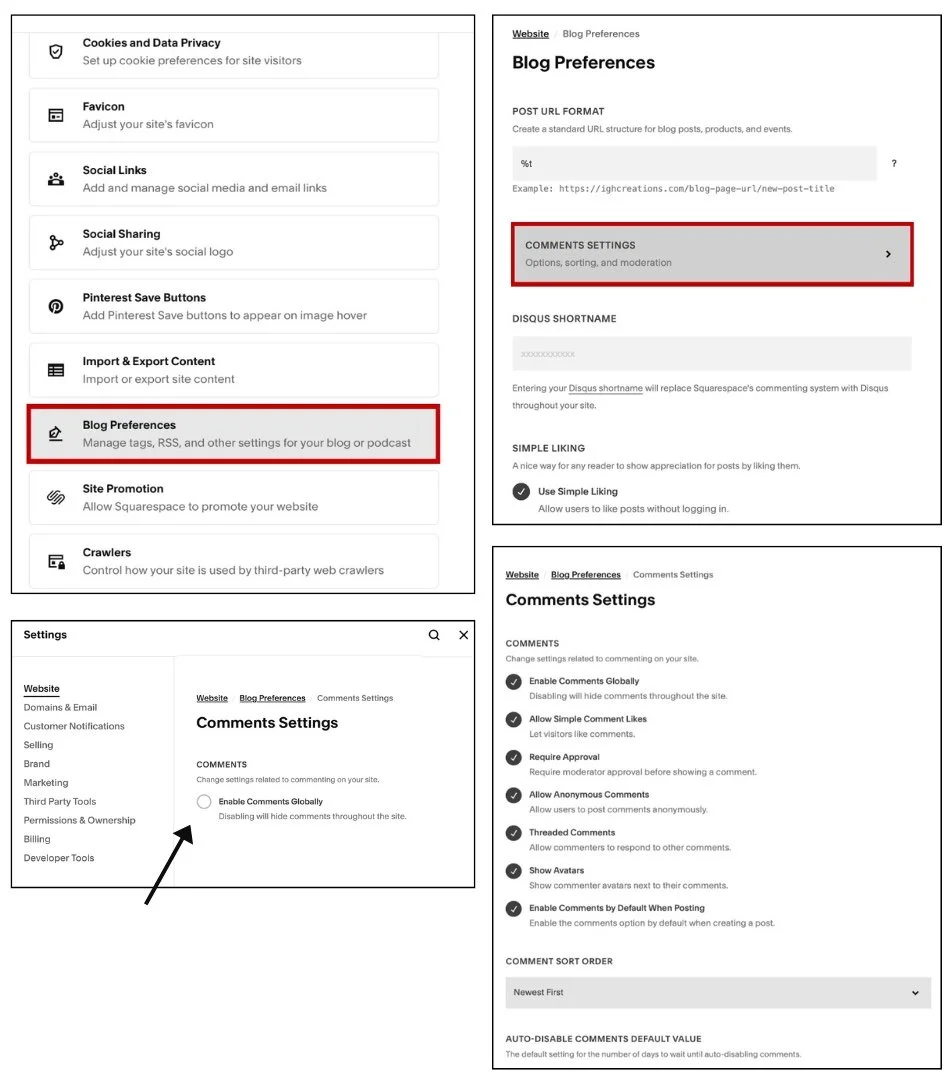
Step 1: Turn On Comments Globally
To allow comments across your whole site, head into your main settings first.
1. Log into your Squarespace dashboard.
2. Click Settings from the Home menu.
3. Under Website, scroll down and select Blog Preferences.
4. Open Comments Settings and check the Enable Comments Globally box.
5. Change any settings to your preferences. Learn more about these settings here.
6. Optional: If you want visitors to comment without signing up, toggle on Allow Anonymous Comments.
7. Click Save.
Step 2: Manage Comments on Individual Posts
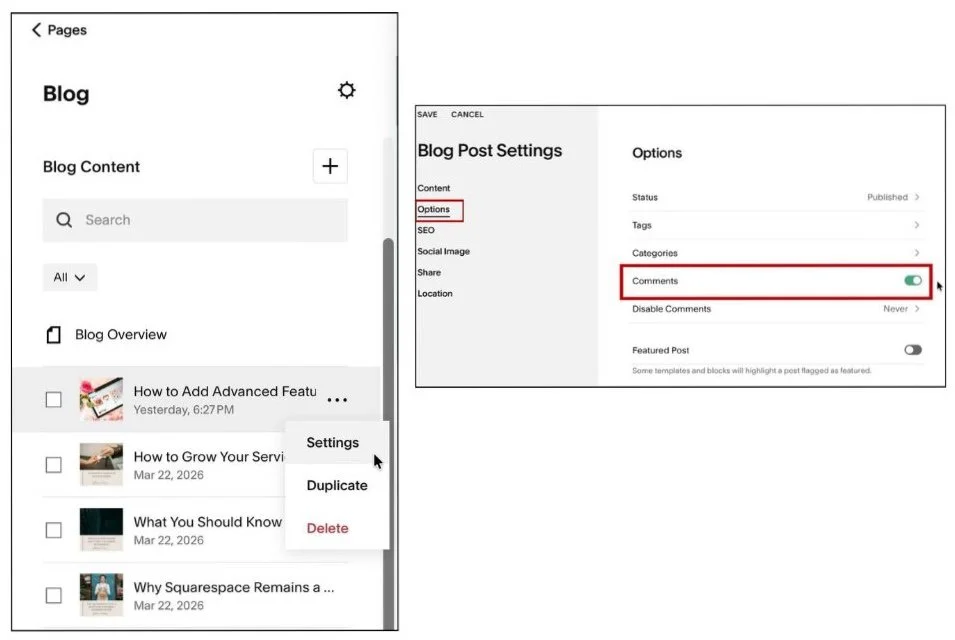
With global comments active, you can still control things post by post.
1. Open the Pages panel and select your Blog page.
2. Find the post you want, click the three dots (...) and choose Settings.
3. Head to the Options tab.
4. Flip the Comments toggle on or off as needed.
5. Click Save.
Step 3: Enable Comment Likes
Readers who do not want to type a full reply can still interact using the heart icon on individual comments. Worth noting: Squarespace 7.1 only supports Simple Likes on comments, not on the post itself.
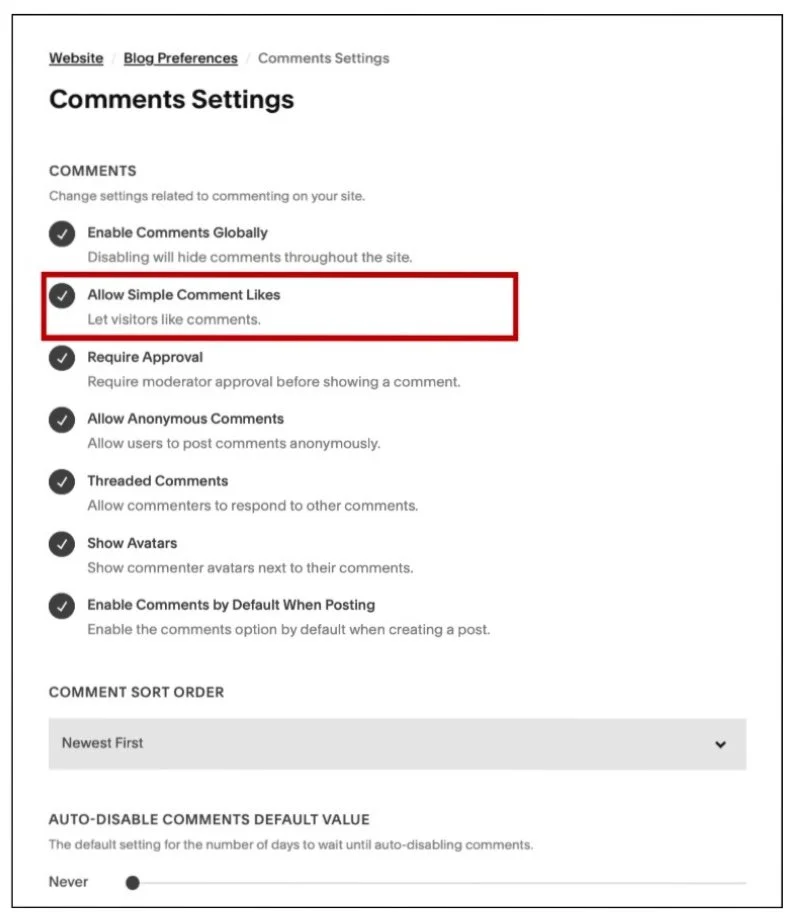
Go to Settings, > Blog Preferences > Comments Settings.
Find the Allow Simple Comment Likes option.
Check the box to turn it on.
Click Save.
Step 4: Moderate and Delete Spam Comments
Keeping your comment section clean does not take much effort with the built-in moderation tools.
Open the Pages panel and select your Blog page.
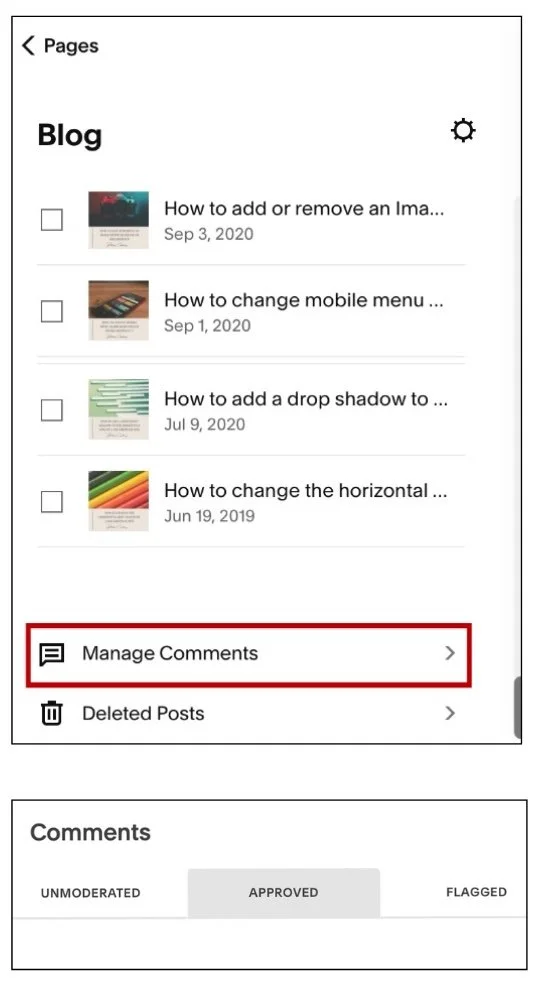
At the bottom of the side panel, click Manage Comments.
Comments are sorted into Unmoderated, Approved, and Flagged tabs automatically.
To delete a comment, click it and hit the trash icon.
To report spam, select Mark as Spam to remove it and help train your filters.
To review comments before they go live, check the Require Approval box in your global Comments Settings.
FAQs: Troubleshooting Common Issues
Q1. Why aren't comments showing up on my older blog posts?
Squarespace disables comments by default on posts published before you enabled the global setting. You will need to open each older post individually and flip the Comments toggle to On.
Q2. Why can't visitors leave a comment?
Readers who see the comment box but cannot submit anything are likely hitting a guest restriction. Check your global Comment Settings and turn on Allow Anonymous Comments so people can reply without creating an account.
Q3. Why did comments disappear on an older post?
Squarespace can automatically close comments after a set period. To stop this from happening, go to Comment Settings and set the Disable Comments dropdown to Never.
Q4. Why are profile pictures not showing up?
Blank grey circles usually mean avatars are turned off. Go into Comment Settings and check the Show Avatars box to pull in your readers' profile pictures.
Q5. Why is the comment box missing in the page editor?
That is completely normal. Squarespace hides the active comment input inside the backend to keep things tidy. Preview your post in an incognito or private browser tab to see what it looks like to your readers.
Final Thoughts
Turning comments on and off in Squarespace 7.1 is pretty simple once you know where to look. A well-managed comment section can really boost engagement and build community around your content. Give it a go and see what kind of conversations your readers start!
Found this helpful or want to know more? Contact us here and share this with a fellow Squarespace user who's just getting started!