TLDR:
Squarespace has a solid built-in analytics dashboard that's easy to use and requires zero setup. It gives you traffic data, source breakdowns, SEO keywords, geography, and (on business and commerce plans) sales metrics. It's great for a quick read on how your site is performing but pairing it with Google Analytics gives you the full picture.
What Is the Squarespace Analytics Dashboard?
If you've ever wondered whether your website is actually working, Squarespace Analytics is where you go to find out. It's a built-in reporting tool available on every Squarespace plan, no extra setup, no code, no third-party plugins.
For beginners, it's honestly one of the best things about building on Squarespace. The data is clean, visual, and surprisingly easy to interpret.
How to Access Your Analytics
Getting there is simple:
Log into your Squarespace account
Click on the website you want to view from your account dashboard
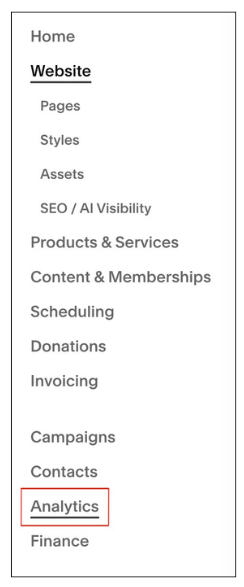
Click on Analytics in the left sidebar menu
You'll enter a data overview panel with several tabs to explore
That's it. No configuration needed to start seeing data.
The Main Dashboard Tabs Explained
Here's a quick breakdown of what each tab does and why it matters:
Traffic Overview
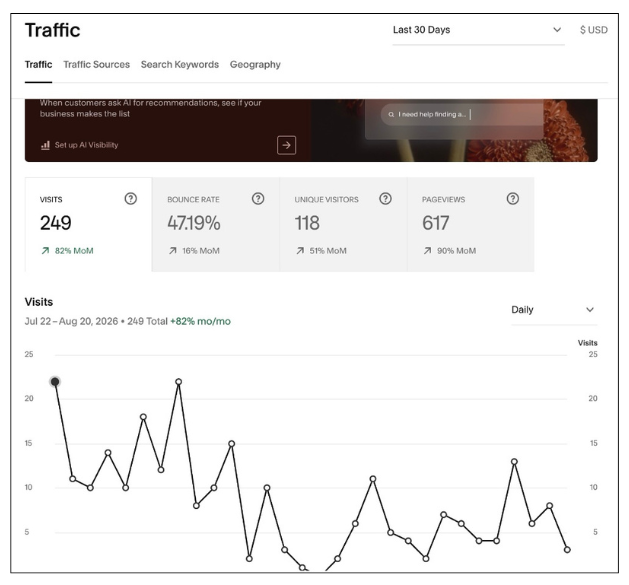
This is your starting point. It shows:
Total visits, unique visitors, and page views
Device breakdown (desktop vs. mobile vs. tablet)
Traffic trends over time (daily, weekly, monthly, yearly)
This tab tells you at a glance whether your site is growing, flat, or dipping. You can adjust the date range to zoom in on a specific period, like right after a launch or a marketing push.
Traffic Sources
This tab answers the question: how are people finding you? Squarespace breaks it down into five categories:
| Source | What It Means |
|---|---|
| Search | Organic traffic from Google or Bing |
| Direct | Visitors who typed your URL directly |
| Social | Traffic from Facebook, Instagram, Pinterest, etc. |
| Referral | Visitors arriving from other websites (backlinks) |
| Email | Clicks from email campaigns or newsletters |
The Referral tab is especially useful. It shows which specific websites or forums are sending traffic your way, which can reveal partnership opportunities you didn't even know you had.
Search Keywords
This tab shows you which search terms people are using to find your site in Google. You'll see:
Top keywords by impressions and clicks
Click-through rate (CTR)
Average search position
Note: To get the most out of this tab, you'll need to connect Google Search Console (more on that below). Without it, keyword data is very limited.
Geography
A visual heatmap and country-by-country breakdown of where your visitors are coming from. You can drill down to regions and even cities. Really handy if you offer local services or run an ecommerce store with specific shipping zones.
Advanced Metrics Worth Knowing
Once you're comfortable with the basics, these sections add more depth:
Engagement / Site Content
Shows your most visited pages. If a particular blog post or service page is getting a lot of traffic, that's a signal to create more content around that topic or to optimize that page further.
Form and Button Conversions
Tracks how many people are clicking your call-to-action buttons or submitting your contact forms. If a button has a low click rate, it might be in the wrong spot on the page or the wording just isn't landing.
Activity Log
A more granular view that logs individual visitor activity, including timestamps, location, and the referring URL. Think of it as a magnifying glass for your site behaviour.
Sales Analytics(Core and higher tier plans only)
If you have an online store, this section is invaluable:
Total sales and conversion rate
Average Order Value (AOV) and Revenue Per Visit (RPV)
Top-selling products
Abandoned cart tracking
A purchase funnel showing where customers drop off before buying
Squarespace Analytics vs. Google Analytics
Here's the honest comparison:
| Feature | Squarespace Analytics | Google Analytics (GA4) |
|---|---|---|
| Setup Required | None | Yes (code or plugin) |
| Ease of Use | Very beginner-friendly | Steeper learning curve |
| Real-Time Data | No (updates every few hours) | Yes |
| SEO/Keyword Data | Basic (via Search Console) | Deep search performance |
| Ecommerce Tracking | Built-in for Squarespace stores | Advanced funnel tracking |
| Demographics | Limited | Age, gender, interests |
| Custom Reports | Not available | Fully customizable |
| Best For | Quick daily overviews | Marketers and data analysts |
The takeaway: Squarespace Analytics is excellent for day-to-day monitoring. Google Analytics is better for deep-dive analysis. The smart move is to use both together.
How to Connect Google Analytics and Search Console
This takes about 5 minutes and is well worth doing:
Select Analytics in your left sidebar menu
Click on Search Keywords tab
Then under Google Search keywords click on Connect
Sign into the Google account associated with your website
Review the requested permissions and click Allow
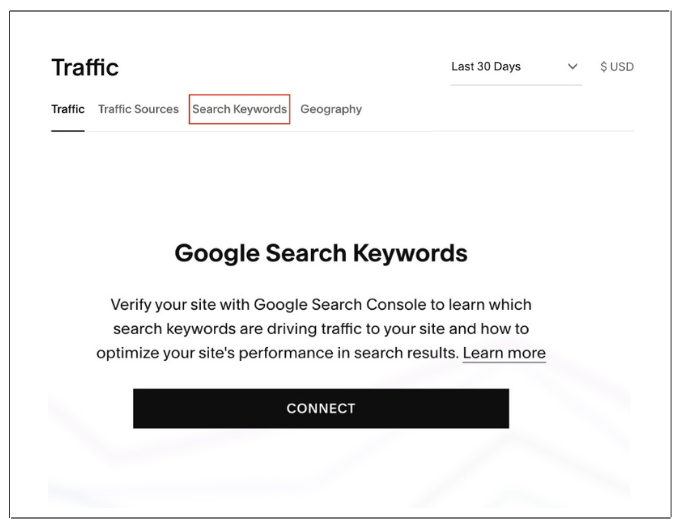
Once connected, your Search Keywords tab in Squarespace will start populating with real Google data, and you'll have GA4 running in the background for deeper reporting.
Turning Data into Action
Now you have the data. You need to make it work. Here are a few quick wins:
High traffic, low conversions? Review the page's call-to-action or layout
Most visitors on mobile? Check that your site looks and functions well on phones
Strong referral source? Explore a collaboration or link-back opportunity with that site
A blog post getting traction? Write related content and link between posts
Geography surprise? Adjust your messaging or offerings to speak to that audience
Making analytics a weekly habit, even just 10 minutes, goes a long way toward smarter, more intentional decisions for your site.
FAQs
Q1. Do I need to set up Squarespace Analytics, or does it just work?
It just works. Analytics are built into every Squarespace plan and start collecting data automatically when your site goes live. No code or configuration needed.
Q2. How accurate is Squarespace Analytics?
It's reasonably accurate for tracking traffic trends and general engagement. That said, data updates every few hours (not in real time), so numbers may differ slightly from Google Analytics. Use it to spot trends rather than rely on exact figures.
Q3. Can I use Squarespace Analytics without Google Analytics?
Absolutely. For most small to mid-sized sites, the built-in dashboard covers everything you need day-to-day. Google Analytics becomes more useful when you want deeper insights, custom reports, or demographic data.
Q4. What's the difference between "visits" and "unique visitors" in Squarespace?
A visit counts every time someone loads your site, including repeat sessions from the same person. A unique visitor counts each individual person only once within the selected time period, regardless of how many times they visited.
Q5. Is Sales Analytics available on all Squarespace plans?
No. Sales and e-commerce metrics are only available on Squarespace's Core and higher tier plans. If you are on a Basic plan you will have to upgrade.
Conclusion
Checking your website data regularly is the best way to make confident decisions about your content and growth. Squarespace Analytics gives you a clear, hassle-free look at your traffic, and connecting Google Analytics gives you even deeper insights when you're ready for them. Set a quick weekly reminder to review your dashboard, spot what's working, and make simple tweaks to keep improving. When you pay attention to the numbers, growing your online presence becomes so much easier!
Found this helpful or want to know more? Contact us here and share this with a fellow Squarespace user who's just getting started!