How to Hide Your Squarespace Pages from Search Results
Whether you are launching a private client portal, setting up an exclusive landing page for a promotion, or building a draft page behind the scenes, you probably do not want Google crawling and displaying every single page on your site.
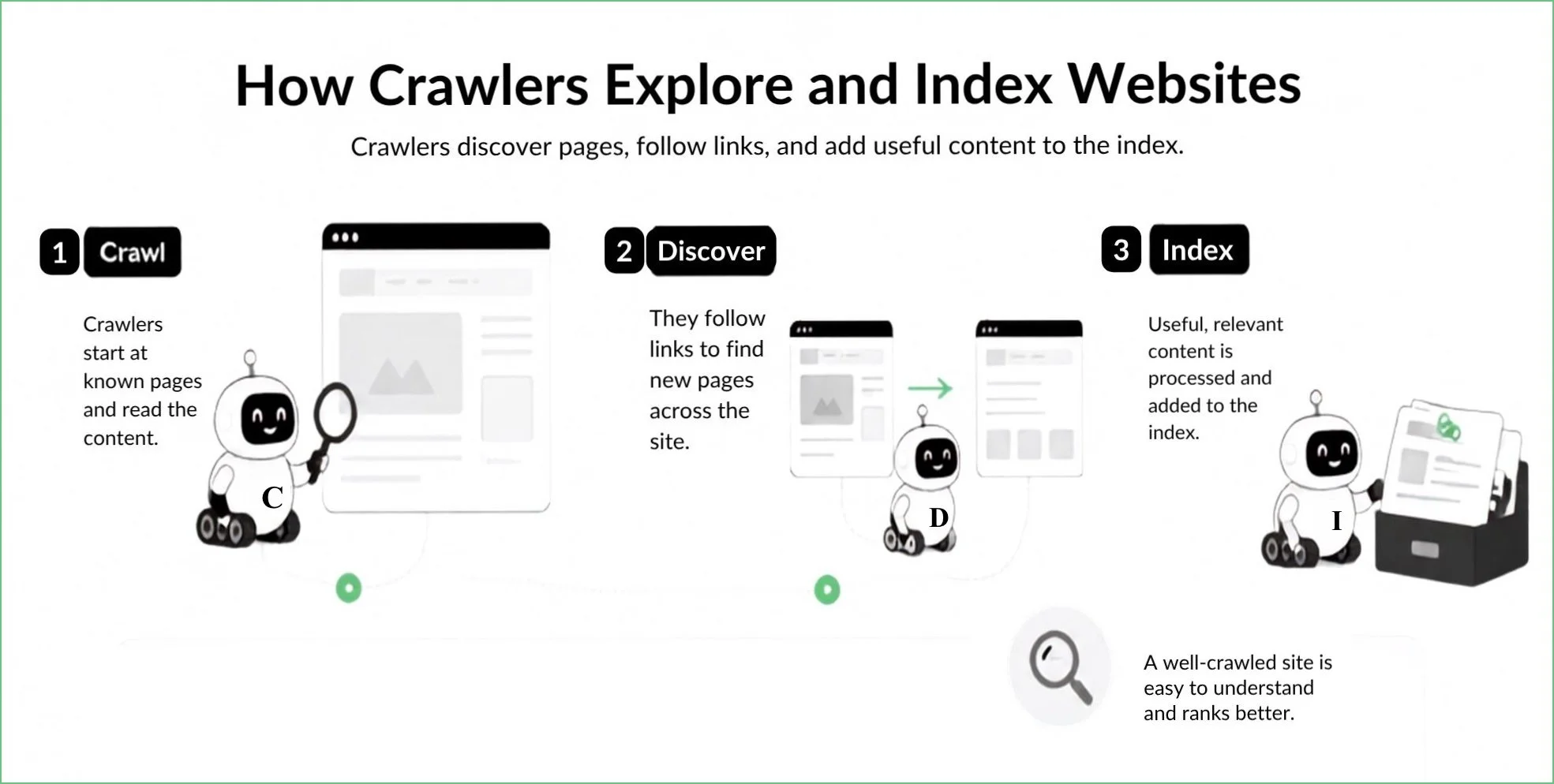
Many business owners make the mistake of thinking that moving a page to the Not Linked section removes it from search engines. It turns out that hiding a page from site navigation is only one part of the equation. In this tutorial, you will learn the exact steps to hide your Squarespace pages from search engine results cleanly and correctly.
Why Hide Pages from Search Engine Results?
There are plenty of scenarios where keeping a web page private makes business sense. Keeping certain content hidden helps maintain site quality, protects paid or exclusive offers, and ensures visitors only see what they are supposed to see.
Common reasons to hide a Squarespace page include:
Landing pages for paid ads: You want precise tracking data without organic visitors landing on custom conversion pages.
Thank you or download pages: You want to make sure people only reach these after filling out a form or completing a purchase.
Private client portals or resources: Sharing specific documents or onboarding materials meant only for paying clients.
Under-construction or draft pages: Building a sales page or temporary promo page before it is ready for prime time.
Duplicate pages: Testing out different layouts without creating duplicate content issues for SEO.
Let us walk through the simple steps to hide your pages from search results step by step.
Step 1: Hide the Page from Site Navigation
When you create a page in Squarespace, it usually defaults to your Main Navigation menu. The first basic step is moving it out of plain sight for visitors browsing your menu.
In your main dashboard, click on Pages.
Locate the page you want to hide under the Main Navigation header.
Click and drag the page down into the Not Linked section below.
Moving a page to Not Linked removes the link from your header and footer menus. However, search engines can still crawl and index this page if they find a link to it elsewhere on the web, or if Google has already indexed it in the past. To actually hide it from search engines, you must proceed to Step 2.
Step 2: Turn Off Search Engine Indexing (The Noindex Tag)
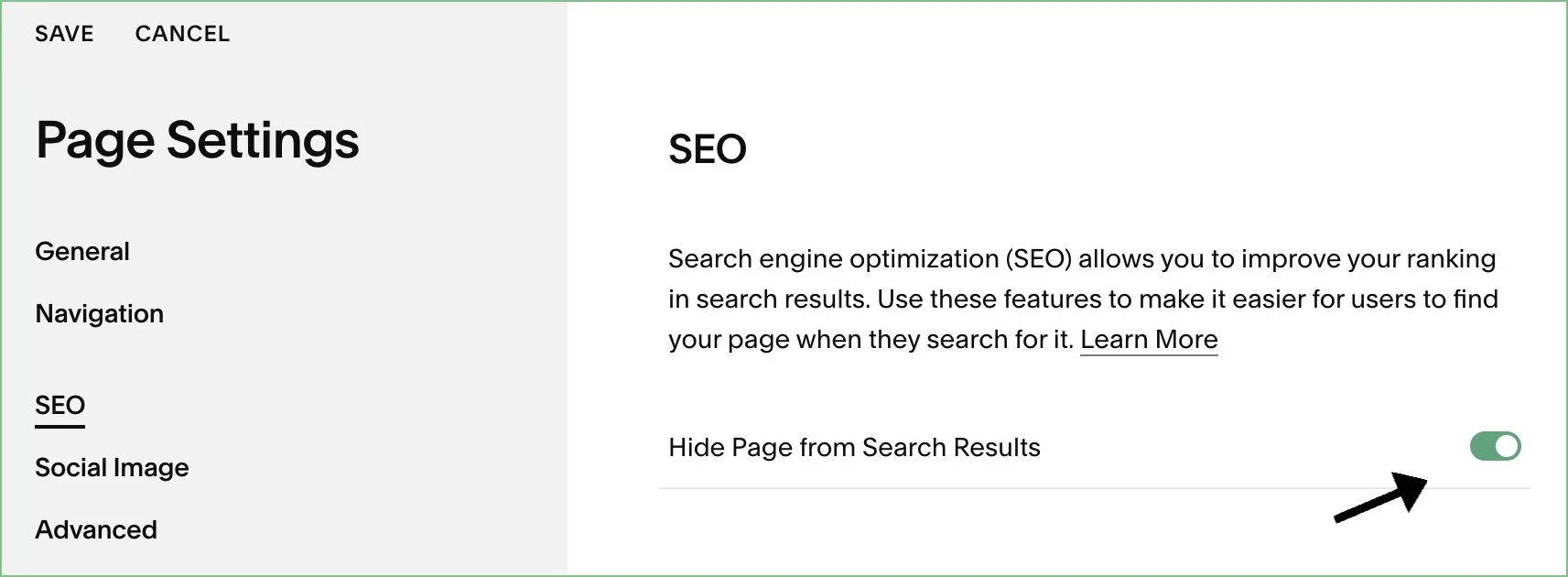
This is the most crucial step for controlling search engine visibility. Squarespace has a built-in toggle that adds a noindex tag to the page header, telling search engine crawlers to move along and leave the page out of search results.
Go to your Pages panel and hover over the page you want to hide.
Click the Gear Icon next to the page to open Page Settings.
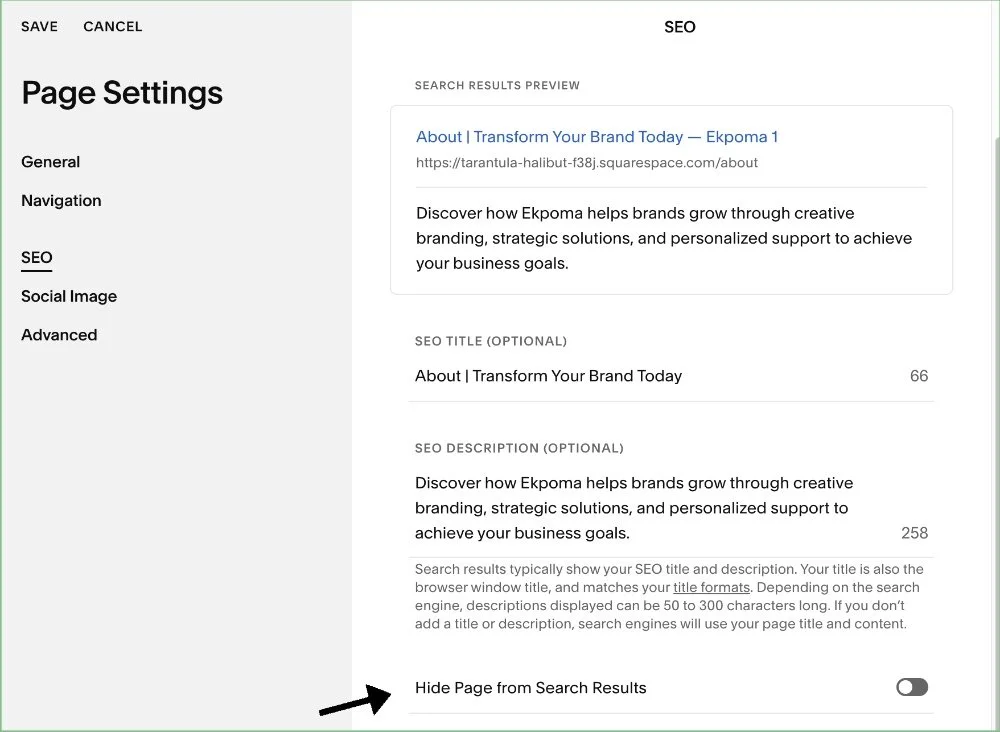
In the side menu, click on the SEO tab.
Scroll down until you see Hide Page from Search Results.
Toggle the switch ON (so it shows as active).
Click Save in the top left corner of the settings window.
Once activated, search engines will respect this tag during their next crawl and refrain from adding the page to public search indexes.
Step 3: Password Protect Your Page for Added Security
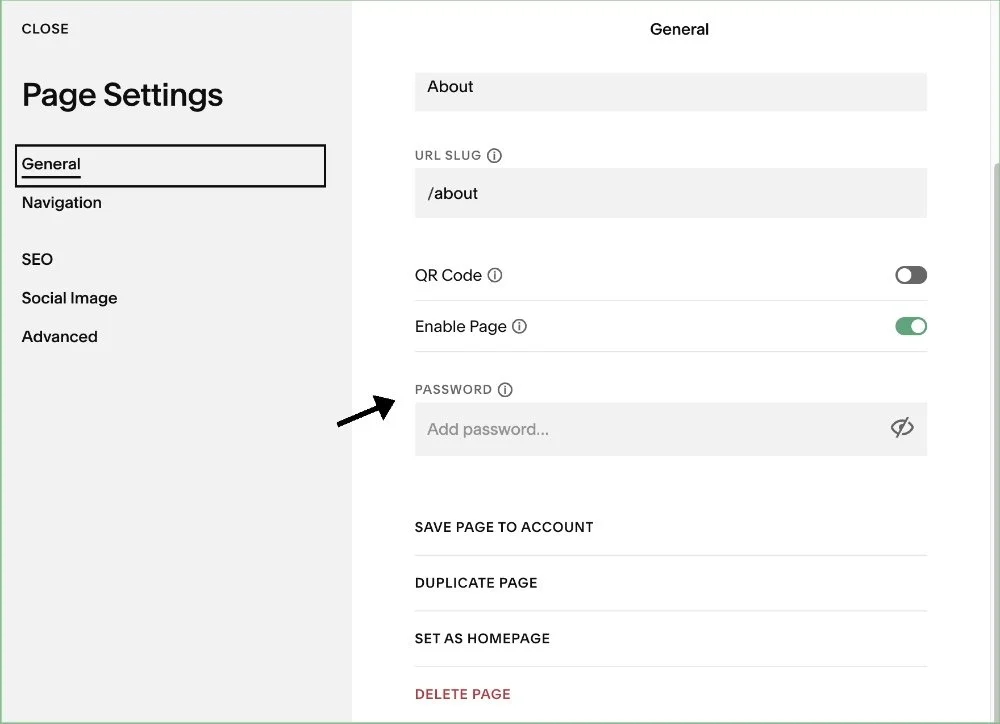
If the content on your page is sensitive or exclusive to paying clients, hiding it from search results might not be enough. Anyone who guesses or receives the direct URL can still view the content. Adding a password restricts access entirely.
Open your Page Settings by clicking the gear icon beside the page.
Stay on the General tab.
Scroll down to the Password field and type in a secure password.
Click Save.
Visitors who use the direct URL must now enter this password to view the page.
Step 4: Remove Any Remaining Internal Links
Search engines follow pathways across the internet. If you have disabled indexing on a page but continue to link to it from blog posts, footer notes, or button blocks, search engine bots will still try to crawl that path.
To ensure complete privacy and avoid sending mixed signals to search engines:
Audit your site for any text links or buttons pointing to the hidden page URL.
Avoid linking to the hidden URL from social media or email campaigns if you want to keep the URL completely private.
Make sure no other pages on your site point to this URL.
Step 5: Speed Up Search Removal with Google Search Console
When you toggle the SEO switch to hide a page, search engines will not drop it from search results instantly. Google needs time to re-crawl your site and discover the updated noindex tag, which can take anywhere from a few days to a couple of weeks.
If a page contains sensitive details or was indexed by accident, you can request an immediate temporary removal using Google Search Console.
Log into your Google Search Console account.
Select your property domain.
Click on Removals in the left sidebar under the Index section.
Click the New Request button.
Enter the exact URL of the Squarespace page you want removed and submit it.
Google will quickly hide the page from search results, giving the noindex tag time to kick in permanently when Googlebot next crawls your site.
Step-by-Step Summary: How to Fully Hide a Page
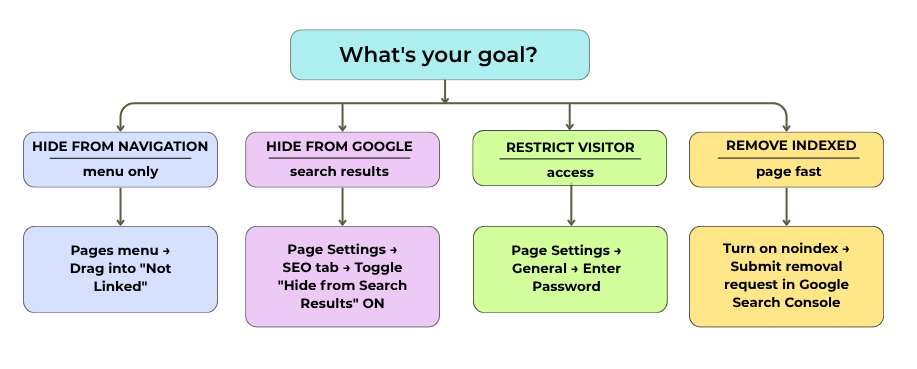
Here is a quick breakdown of how to handle different privacy scenarios on your Squarespace site:
To hide a page from navigation menus only: Drag the page into the Not Linked section under the Pages menu.
To hide a page from Google search results: Go to Page Settings > SEO tab > Toggle ON "Hide Page from Search Results".
To restrict visitors from viewing content: Go to Page Settings > General tab > Enter a Password.
To remove an already-indexed page quickly: Submit a removal request in Google Search Console after turning on the noindex toggle
Frequently Asked Questions
Q1. Does moving a page to Not Linked hide it from Google search?
No, moving a page to the Not Linked section only removes it from your visual header and footer navigation menus. Search engines can still crawl, index, and display the page in search results if they discover the URL elsewhere or if it was indexed previously. You must enable the "Hide Page from Search Results" setting under the SEO tab to block search engines.
Q2. How long does it take for Google to remove a hidden page?
It usually takes a few days to a couple of weeks for Google to crawl your site, detect the noindex setting, and remove the page from search results. If you need it removed right away, you can use the Removals tool in Google Search Console to speed up the process.
Q3. Can I edit the robots.txt file in Squarespace to block pages?
No, Squarespace manages the robots.txt file automatically for all websites hosted on its platform, so users cannot directly edit it. Using the built-in SEO toggle on individual page settings is the official and supported method to add noindex instructions for search engines.
Q4. Can I still share a hidden page link with my clients?
Yes, you can absolutely share the direct URL with clients, team members, or subscribers. As long as you have toggled "Hide Page from Search Results" on, search engines will stay away while anyone with the direct URL can open and view the page normally (provided you have not password-protected it).
Final Thoughts
Controlling page visibility on your Squarespace site is simple once you know which toggles to use. By combining the built-in SEO hiding settings with optional password protection, you can confidently share exclusive content or build new features behind the scenes without worrying about unintended Google indexation. Take a few minutes to audit your site pages today, make sure your private pages stay private, and keep your site clean and organized for search engines and visitors alike.
Found this helpful or want to know more? Contact us here and share this with a fellow Squarespace user who's just getting started!