TLDR:
Website accessibility means making your Squarespace site usable for everyone, including those with visual, hearing, cognitive or motor disabilities. This post offers simple, practical steps Squarespace users can implement to improve website accessibility. Things like adding alt text and video captions to using proper heading structure and checking colour contrast. These changes are easy to make, good for SEO, and the right thing to do.

1. What Is Website Accessibility?
Website accessibility is the idea that your site should work for everyone, regardless of ability, device, or connection speed. That includes people who are blind or have low vision, people who are deaf or hard of hearing, people with cognitive differences, and people who navigate the web with a keyboard instead of a mouse.
Think about it this way: if someone visited your website today using a screen reader or without sound, could they still get what they came for? That's what accessibility is really asking.
2. Why It Matters for Your Squarespace Site
You might be thinking, "I'm a small business owner, not a developer. Do I really need to worry about this?" The short answer is yes, and here's why:
More people can find and use your site. Accessibility improvements also make your site easier to use for people on slow internet connections, older devices, or small screens.
It helps your SEO. Search engines reward well-structured, readable content. Many accessibility best practices overlap directly with good SEO habits.
It reflects your values. An accessible site tells visitors that you care about everyone who shows up, not just people who fit a certain mould.
There may be legal considerations. Depending on where your business is based, certain accessibility standards may apply. It is always worth being proactive rather than reactive.
3. Easy Accessibility Wins You Can Do Today
You don't have to fix everything at once. Start with these practical steps and work through them one at a time.
Add Alt Text to Your Images
Alt text is a short description of an image that screen readers read aloud to visually impaired users. It also shows up when an image doesn't load properly.
In Edit mode, double-click on the image.
Look for the Image Alt Text field in the content tab.
Type a short, specific description of the image. Aim for 125 characters or less.
Skip phrases like "a photo of" since screen readers already announce the element as an image.
Example: Instead of "A photo of our team," write "Four team members smiling in front of the studio entrance."
Fix Your Heading Structure
Screen readers use headings (H1, H2, H3) to help users navigate a page, like chapters in a book. Skipping heading levels or using them just for their visual size creates confusion.
H1 is your main page title. Use it once per page.
H2 is for major sections.
H3 is for sub-sections within those.
Avoid jumping from H1 straight to H4, as that breaks the logical flow.
In Squarespace, you can change the heading level by highlighting your text and selecting the correct heading style from the text toolbar.
Check Your Colour Contrast
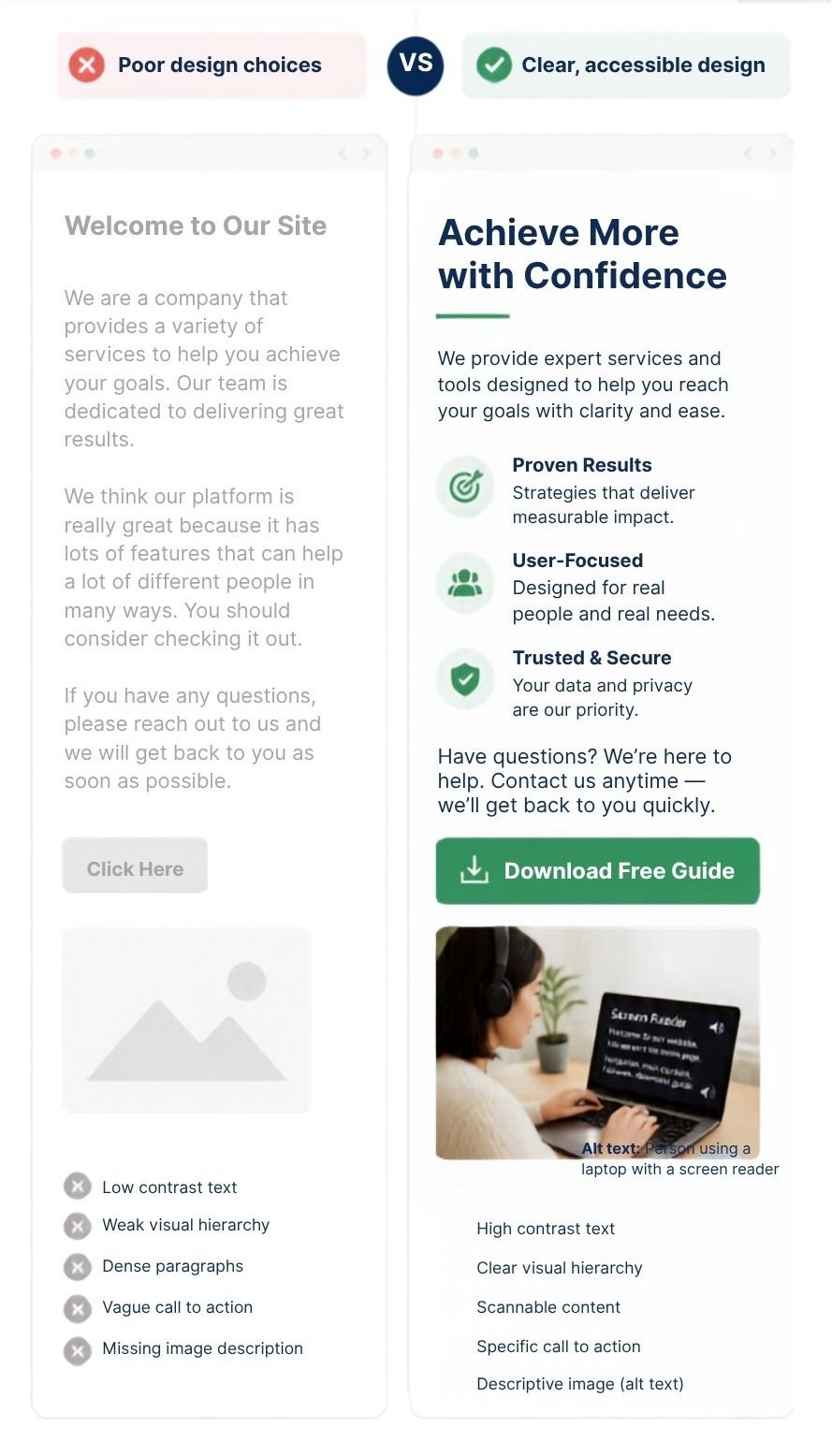
Text that blends into the background is hard to read, especially for people with low vision or colour blindness. Use the free tool WebAIM Contrast Checker and paste in your text colour and background colour to test if they meet accessibility standards. As a rule of thumb, use dark text on a light background, or vice versa, and always avoid light grey text on white backgrounds.
Add Captions and Transcripts to Videos
Add captions to any videos on your site. YouTube automatically generates captions and lets you edit them for accuracy.
If you have podcast audio or voiceover content, include a written transcript on the same page. This helps hearing-impaired users and gives search engines more content to index.
Use Clear Labels on Forms and Buttons
Vague button text like "Click Here" or "Submit" doesn't give screen reader users much context. Instead, use descriptive labels:
"Send Your Message" instead of "Submit"
"Download the Free Guide" instead of "Click Here"
In Squarespace's Form Block, you can also add descriptive helper text inside form fields to guide users on what to enter.
Be Mindful of Animations
Background parallax effects and auto-playing GIFs can be visually overwhelming or even trigger issues for users with certain sensory sensitivities. To disable these in Squarespace:
Click on a section with a background effect.
Open the Section Settings or Design panel.
Look for Background Effects and turn off parallax or animation if it isn't essential.
4. Helpful Tools and Widgets
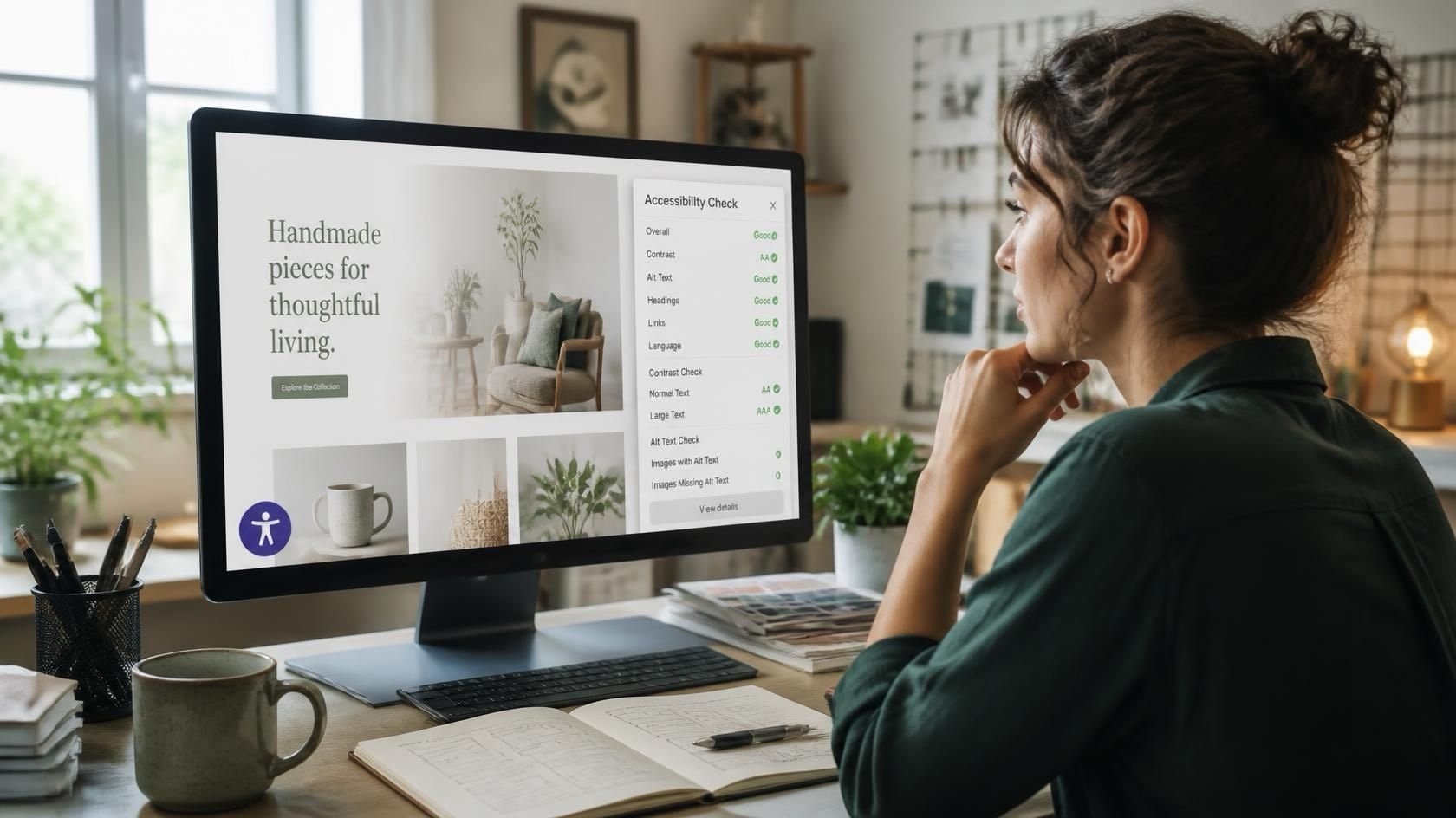
Squarespace has built-in accessibility features like keyboard navigation support and ARIA labels, but you can go further with third-party accessibility widgets. These are small pieces of code you paste into your site's Settings > Advanced > Code Injection area.
| Widget | What It Does |
|---|---|
| UserWay | Adds a toolbar for text resizing, contrast toggle, and screen reader support |
| AccessiBe | AI-powered tool with profiles for vision, ADHD, and motor impairments |
| AudioEye | Screen reader enhancements and automated compliance checks |
All three have free plans or trials to get you started.
FAQs
Q1: Does Squarespace make my site automatically accessible?
Squarespace does a lot of the heavy lifting behind the scenes, like keyboard navigation support and responsive design. But things like alt text, heading structure, colour contrast, and captions are in your hands as the site owner.
Q2: Do I need to meet legal accessibility standards?
It depends on your location and the nature of your business. In the U.S., the Americans with Disabilities Act (ADA) has been interpreted to apply to websites. It is a good idea to check your local regulations or consult a legal professional if you are unsure.
Q3: How do I know if my site is accessible right now?
A good starting point is the free browser extension Axe DevTools by Deque. It scans your page and flags accessibility issues with explanations of how to fix them.
Q4: Will improving accessibility hurt my site's design?
Not at all. In fact, many accessibility improvements, like cleaner heading structure, better contrast, and clearer button labels, tend to make sites look and feel more professional and polished.
Q5: How often should I review my site for accessibility?
Any time you add new content, images, or pages is a good time to do a quick check. A more thorough audit once or twice a year is a solid habit to build.
Final Thoughts
Improving your Squarespace website’s accessibility is an ongoing practice not an overwhelming one-time fix. You don’t need to change everything at once. Simply pick one thing in this post to tackle this week. Maybe adding alt text to site images, fixing your heading structure or improving colour contrast. Every small, consistent adjustment builds momentum, ultimately creating a much more welcoming and inclusive experience for all your visitors, and that’s always worth the effort.
Found this helpful or want to know more? Contact us here and share this with a fellow Squarespace user who's just getting started!