Nobody likes a slow website. Not your visitors. Not Google. And honestly? Not you either.

TL;DR
Slow Squarespace sites are almost always caused by the same three things: oversized images, too many tracking scripts, and heavy video content. Left unchecked, these issues can sink your Google ranking and drive visitors away. This checklist walks you through fixing all of it, no developer, no coding, no drama. Start with your images. That single change can completely transform your site’s loading speed.
Why This Actually Matters
Let's be honest. If your site takes more than 3 seconds to load, most people are already gone. They didn't read your headline, they didn't see your offer, they just... left. And on top of that, Google uses page speed as a ranking factor. So, a sluggish site quietly works against your SEO every single day.
Here's the encouraging part though: Squarespace already handles a lot of the technical stuff for you. Your site runs on a global Content Delivery Network (CDN), SSL is included, and the platform gets regular performance updates. The stuff that actually slows most Squarespace sites down isn't the platform. It's the content people put on it. Meaning, you have more control over this than you might think.
First: Find Out Where You Stand
Before you change anything, run a quick speed test. Think of it as a check-up before the treatment.
These three free tools are all you need:
GTmetrix — Shows you a detailed breakdown of exactly what's slowing your page down. Great for spotting problem files.
Google PageSpeed Insights — Tells you what Google sees. Relevant if you care about your search rankings (you should).
Pingdom — Simple, clean, easy to understand. Good for a quick gut-check.
Keep in mind: These tools sometimes flag issues that are baked into Squarespace itself: things like browser caching or server response settings that you literally cannot change. Don't let those freak you out. Scroll past them and focus only on the image, content, and script-related warnings. Those are the ones you can actually fix.
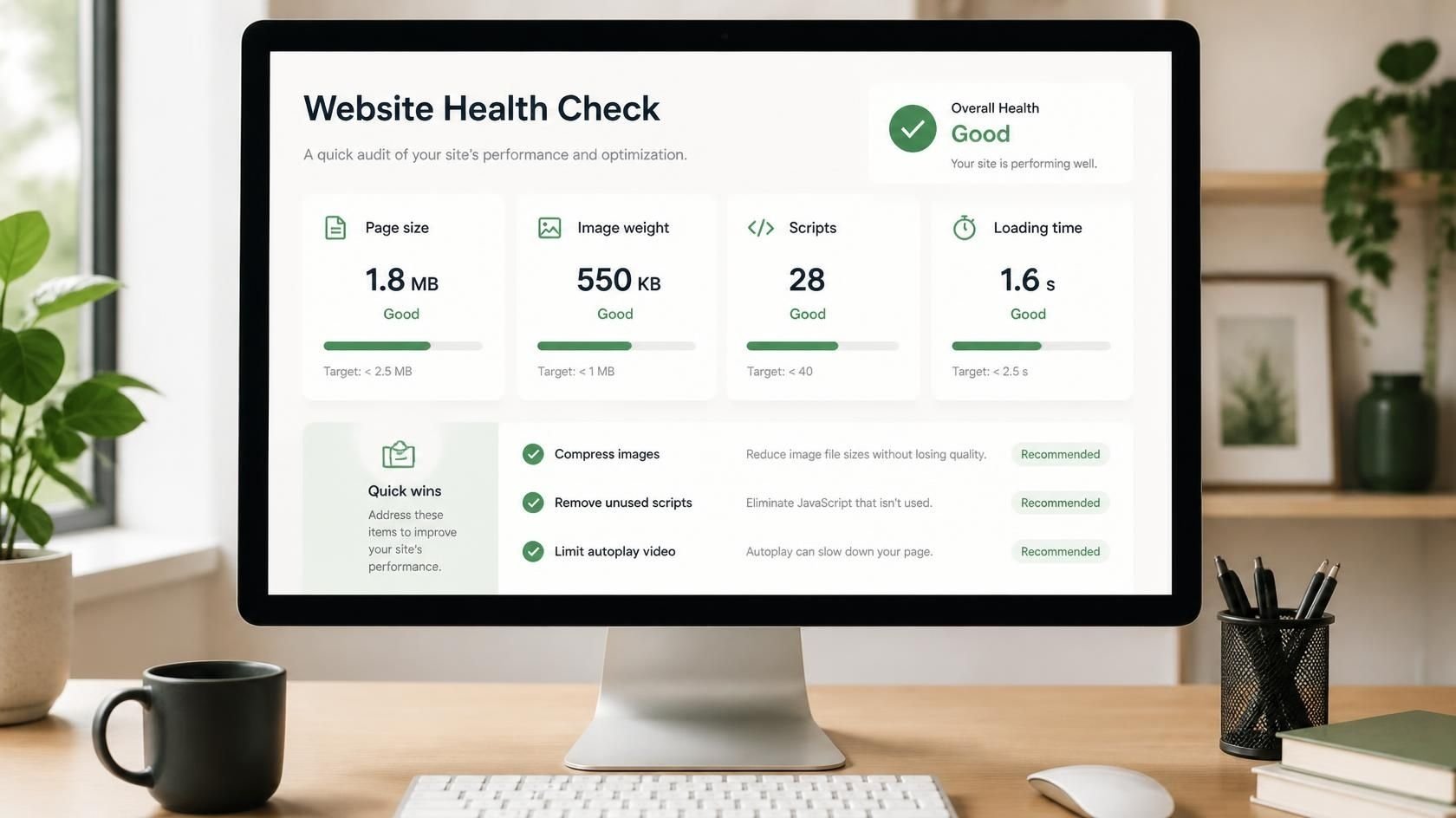
Want to check page size without any tools? Open your site in Chrome, right-click anywhere, hit Inspect, click the Network tab, and refresh. The total size and load time show up at the bottom of the panel. Simple.
Squarespace recommends keeping each page at 5 MB or less. That's your target.
Your Quick Wins Checklist
Work through these one at a time. You don't have to do them all in one sitting — even two or three of these will make a real difference.
Fix #1: Compress Your Images (Seriously, Do This First)
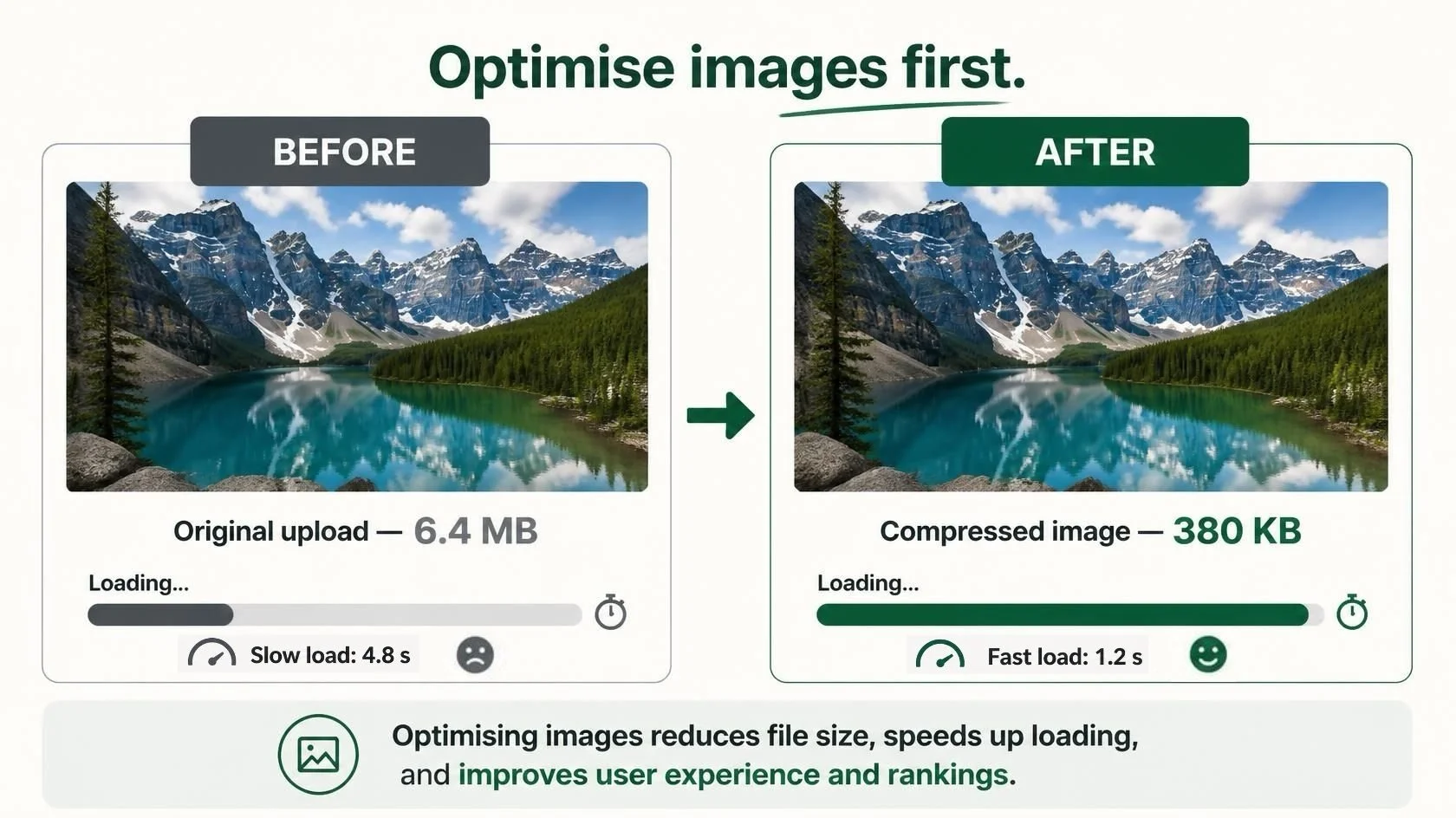
If there's only one thing you take away from this post, it’s this: compress your images before you upload them.
Uploading a photo straight off your phone or camera can easily be 5–10 MB. That's your entire page size budget blown on a single image. But most of the time, you can cut that down to under 500 KB without any noticeable drop in image quality.
Simply, run every image through one of these free tools before it goes anywhere near your Squarespace website:
TinyPNG — Drag, drop, download. Cuts file size by up to 80% on PNG and JPG files. Takes about 10 seconds.
Squoosh — Google's own tool. Shows you a live before/after comparison so you can see the quality versus file size trade-off in real time.
PicResize — Great if your images also need to be resized. Does both, in one step.
Keep image widths between 1500px and 2500px. Squarespace scales everything responsively, so there's no reason to upload anything bigger than that.
Fix #2: Check Your Image File Format
Not all image formats are created equal. Here's the quick guide:
WebP — The fastest option available right now. Smaller file size than JPG at the same visual quality.
JPG — Your go-to for photos and banners. Compresses well, works everywhere.
PNG — Only use this when you genuinely need a transparent background (logos, icons). PNG files are significantly larger than JPG.
GIF / animations — Use these sparingly or skip them entirely. Animated GIFs are shockingly large and can cripple a page's load time on their own.
Fix #3: Turn On WebP in Squarespace
Squarespace can automatically serve your images in the faster WebP format, but you need to switch on this setting.
Here's how:
1. Go to Settings in your Squarespace dashboard.
2. Click Website, then Image Settings.
3. Toggle on Serve images in WebP format.
That's it. One click and your images are now loading in a more efficient format for the majority of your visitors. Do this today.
Fix #4: Audit Your Tracking Scripts
Every third-party script running on your site (Google Analytics, Facebook Pixel, chat widgets, heatmap tools, social media feeds) adds another task for your visitor's browser to complete before the page finishes loading. One or two essential scripts are totally fine. The problem is when they pile up over time and nobody cleans house.
Here's how to do a quick audit:
1. In Squarespace, go to Settings > Advanced > Code Injection.
2. Look through your Header and Footer code sections.
3. Remove anything you added for a campaign that's long gone, a tool you stopped using, or a plugin you forgot about.
4. Also check individual pages under Page Settings > Advanced — scripts can hide there too.
Ask yourself: Am I actually looking at the data this script collects? If the answer’s no, cut it. Your page speed will thank you.
Fix #5: Rethink Those Autoplay Background Videos
Autoplay background videos are a design choice that can look stunning but silently wreck your load time. Most people don't realise that these videos start loading the moment someone arrives, even if they never scroll down to see it.
One autoplay video in your homepage hero section is usually fine. But two or three stacked down the same page? That's a problem.
To fix this, try these easy swaps:
Replace background videos: Use high-quality static images for sections below the fold.
Embed external players: Use YouTube or Vimeo with custom thumbnails for non-hero videos so they only load on click.
Distribute your content: Spread multiple videos across separate pages instead of stacking them on one.
Fix #6: Watch Your Page Size
Think of your page like a hiking backpack. The more gear you stuff inside, the heavier it gets and the slower you move along the trail. Squarespace recommends keeping each page under 5 MB.
If you're over that, here's how to lighten the load:
Divide long pages: Break up long content into smaller, focused subpages.
Reduce block counts: Keep your total sections, forms, and images under 60 blocks per page.
Restrict gallery sizes: Limit image galleries to 50 photos to protect loading speeds.
Enable post snippets: Show blog excerpts on your main blog page for lighter loading rather than full posts.
Fix #7: Cut Back on Web Fonts
Custom fonts are a branding win, but every unique font family your site loads means another download request before your page looks right. If you've got four different fonts across your site, that's four extra requests happening before a visitor sees anything.
Try capping it at two font families, with one for headings, one for body text. It's a clean, professional look that also happens to be faster. You can manage this in Squarespace under Site Styles > Fonts.
| Tool | What It Does | Link |
|---|---|---|
| TinyPNG | Compress PNG and JPG images fast | tinypng.com |
| Squoosh | Resize and compress with live preview | squoosh.app |
| PicResize | Resize and compress in one step | picresize.com |
| GTmetrix | Detailed waterfall speed report | gtmetrix.com |
| PageSpeed Insights | Google's speed and Core Web Vitals tool | pagespeed.web.dev |
| Pingdom | Quick speed grade and page size check | tools.pingdom.com |
FAQs
Q1. Will compressing my images make them look worse?
Not in any meaningful way. Tools like TinyPNG and Squoosh are specifically designed to reduce file size without visible quality loss. Most people genuinely cannot tell the difference between a 4 MB original and a well-compressed 300 KB version when they're side by side on a screen.
Q2. My PageSpeed score is terrible. Should I panic?
Nope. Some of the issues those tools flag are tied to the Squarespace platform itself — things you have zero control over, like server caching settings. Squarespace has even noted this themselves. Ignore those warnings and focus on the image and content-related suggestions. Those are the ones that matter.
Q3. Do I really need to remove my Facebook Pixel or Google Analytics?
No. Keep the scripts you're actually using and getting value from. The goal of the audit is to find the forgotten ones. That old countdown timer plugin from a sale you ran two years ago? Remove. Your core analytics tracking? Keep it.
Q4. Can I use video on my homepage and still have a fast site?
Absolutely. One well-chosen autoplay background video in your hero section is fine. It's the stacking of multiple autoplay videos down the same page that causes real problems. For anything below the fold, use click-to-play video with a custom thumbnail instead.
Q5. How do I know if my page is actually too big?
Open Chrome, right-click your page, hit Inspect, go to the Network tab, and refresh. You'll see the total page size at the bottom. Or just plug your URL into GTmetrix — it'll tell you everything. Anything over 5 MB is worth looking at.
Q6. What's the single best thing I can do right now?
Go compress your images. Right now. Before you do anything else on this list. It takes ten minutes, it's free, and it's the change that will have the biggest immediate impact on your site's speed. Everything else on this list is a bonus.
Final Thoughts
A faster Squarespace site isn't a massive technical project; it’s just a handful of small habits performed consistently. Start by optimising your images, streamlining your site text, and being intentional about the content on each page. Doing these three things well will put you ahead of most websites out there. Even if you only tackle two or three fixes from this checklist today, your visitors will immediately notice a snappier site and so will Google.
Found this helpful or want to know more? Contact us here and share this with a fellow Squarespace user who's just getting started!